Sunday, October 16, 2016

The deployment was aborted. You do not have privileges to deploy to server: . For deployment, you must have administrative rights to the SQL Server Reporting Services (SSRS) server. Contact your administrator to deploy.

Recently I faced one issue, I was trying to deploy the SSRS report, as soon as I select "Deploy Element" from AX.

" The deployment was aborted. You do not have privileges to deploy to server: <server name>. For deployment, you must have administrative rights to the SQL Server Reporting Services (SSRS) server. Contact your administrator to deploy."

After multiple tries i found out the reason for this issue, you need to give the Administrator rights (in reporting server machine Local Machine) to that user who is trying to deploy.

To add the user in local machine Group follow the below steps.


  1. Go in Computer management and then select "Local Group and Users".
  2. Now select "Groups".


4. Double click "Administrator" group and Add your user as shown below.


After go to the "SQL Reporting Service Configuration Server", go to the server Account and re select the value for Use Another Account field 


Tuesday, October 4, 2016

Create and post new ledger journal in AX 2012 through X++ code

Script for creation and posting of new ledger journal through X++ code.


static void VendPaymJournalCreate(Args _args)
{
        LedgerJournalTable          jourTable;
        LedgerJournalTrans          jourTrans;
        LedgerJournalTableData      jourTableData;
        LedgerJournalTransData      jourTransData;
        LedgerJournalStatic         jourStatic;
        DimensionDynamicAccount     ledgerDim;
        DimensionDynamicAccount     offsetLedgerDim;
        ledgerjournalcheckpost      post ;
        LedgerJournalTable          tablepost;
        ttsBegin;
        ledgerDim = DimensionStorage::getDynamicAccount('V000002',LedgerJournalACType::Vend);
        offsetLedgerDim = DimensionStorage::getDynamicAccount('ABDI316053',LedgerJournalACType::Bank);
        jourTableData = JournalTableData::newTable(jourTable);
        jourTable.JournalNum = jourTableData.nextJournalId();
        jourTable.JournalType = LedgerJournalType::Payment;
        jourTable.JournalName = 'PV16';
        jourTableData.initFromJournalName(LedgerJournalName::find(jourTable.JournalName));
        jourStatic = jourTableData.journalStatic();
        jourTransData = jourStatic.newJournalTransData(jourTrans,jourTableData);
        jourTransData.initFromJournalTable();
        jourTrans.CurrencyCode = 'AED';
        jourTrans.initValue();
        jourTrans.TransDate = systemDateGet();
        jourTrans.AccountType = LedgerJournalACType::Vend;
        jourTrans.LedgerDimension = ledgerDim;
        jourTrans.Txt = 'Vendor payment journal demo';
        jourTrans.OffsetAccountType = LedgerJournalACType::Bank;
        jourTrans.OffsetLedgerDimension = offsetLedgerDim;
        jourTrans.AmountCurDebit = 1000;
        jourTransData.create();
        jourTable.insert();
        tablepost = jourTable;
        ttsCommit;
        info(strFmt("Journal '%1' has been created", jourTable.JournalNum));
    //LedgerJournalTable      table;
    //ledgerjournalcheckpost  post ;
    //;
    //table = //LedgerJournalTable::find("JB0000191");
    post =  LedgerJournalCheckPost::newLedgerJournalTable(tablepost,true,true);

   // post = new LedgerJournalcheckPost::newLedgerJournalTable(table,NoYes::Yes,NoYes::Yes);
    post.run();
    info("Done");

}

Type Of roles and Permissions in SSRS report


In this article, I will show you how to create User Roles and assign roles & permissions to users in SSRS.
Before starting this please go through below details about roles.
The Browser Role : The Browser role is the basic role assigned to users who are going to view reports. The Browser role has rights to perform the following tasks:
  • Manage individual subscriptions
  • View folders
  • View models
  • View reports
  • View resources
The Publisher Role The Publisher role is assigned to users who are going to create folders and upload reports. The Publisher role has rights to perform the following tasks:
  • Create linked reports
  • Manage data sources
  • Manage folders
  • Manage models
  • Manage reports
  • Manage resources
The My Reports Role The My Reports role is designed to be used only with a special folder called the My Reports folder. Within this folder, the My Reports role gives the user rights to do everything except change security settings. The My Reports role has rights to perform the following tasks:
  • Create linked reports
  • Manage data sources
  • Manage folders
  • Manage individual subscriptions
  • Manage report history
  • Manage reports
  • Manage resources
  • View data sources
  • View folders
  • View reports
  • View resources
The Content Manager Role The Content Manager role is assigned to users who are managing the folders, reports, and resources. All members of the Windows local administrators group on the computer hosting the report server are automatically members of the Content Manager role for all folders, reports, and resources. The Content Manager has rights to perform all tasks, excluding system-wide tasks. 
The System User Role The system-wide security tasks have two predefined roles.The System User role has rights to perform the following system-wide tasks:
  • Execute report definitions
  • View report server properties
  • View shared schedules
The System Administrator Role The System Administrator role provides the user with rights to complete any of the tasks necessary to manage the report server. All members of the Windows local administrators group on the computer hosting the report server are automatically members of the System Administrator role. This role has rights to perform the following system-wide tasks:
  • Execute report definitions
  • Manage jobs
  • Manage report server properties
  • Manage report server security
  • Manage roles
  • Manage shared schedules

Assign User Roles and Permissions in SSRS or insufficient permission to Preview Dynamics AX Reports

Before start make sure the user or the user group is added in to the Active Directory. To give the access to a use or user group we have to add the same user or group in to 3 main settings. 


  1. Add Group in to Site setting.
  2. Add Group in to Folder Setting.
  3. Add group in Folder by click Right Side Arrow Click in the folder.
All steps are define below to complete the above task.


Site Setting 

1. First of all open Internet Explorer and go to Report Manager URL which is something like below:
http://Any-Pc/Reports2012
Your browser tab looks like below :

2. Now click on the link of Site Settings which is on the right top corner. Then click on the Security from the left pane. You will see results like below.

Here you will see BUILTIN\Administrators user assigned to System Administrator role.
3.To add New Role Assignment, click on the link of New Role Assignment as Shown in below screenshot.

4. In next screen, Enter the Group or User Name and select role based on your requirement. Please see below screenshot.

Then click on OK button. Here you can see the list of Roles which are assigned to group or users.


Folder Settings-----------------
5. Now click on the link of Home and then click on the link of Folder Settings.

6. You will see results like following.

7. Then click on New Role Assignment and you will see like below screenshot.

In that screen Enter group or user name and select roles as par your requirement.Here we will add Administrator and assign roles of Content Manager & My Reports. Then click on OK button.

Here you can see added role.

Folder Right Click Setting-------------------

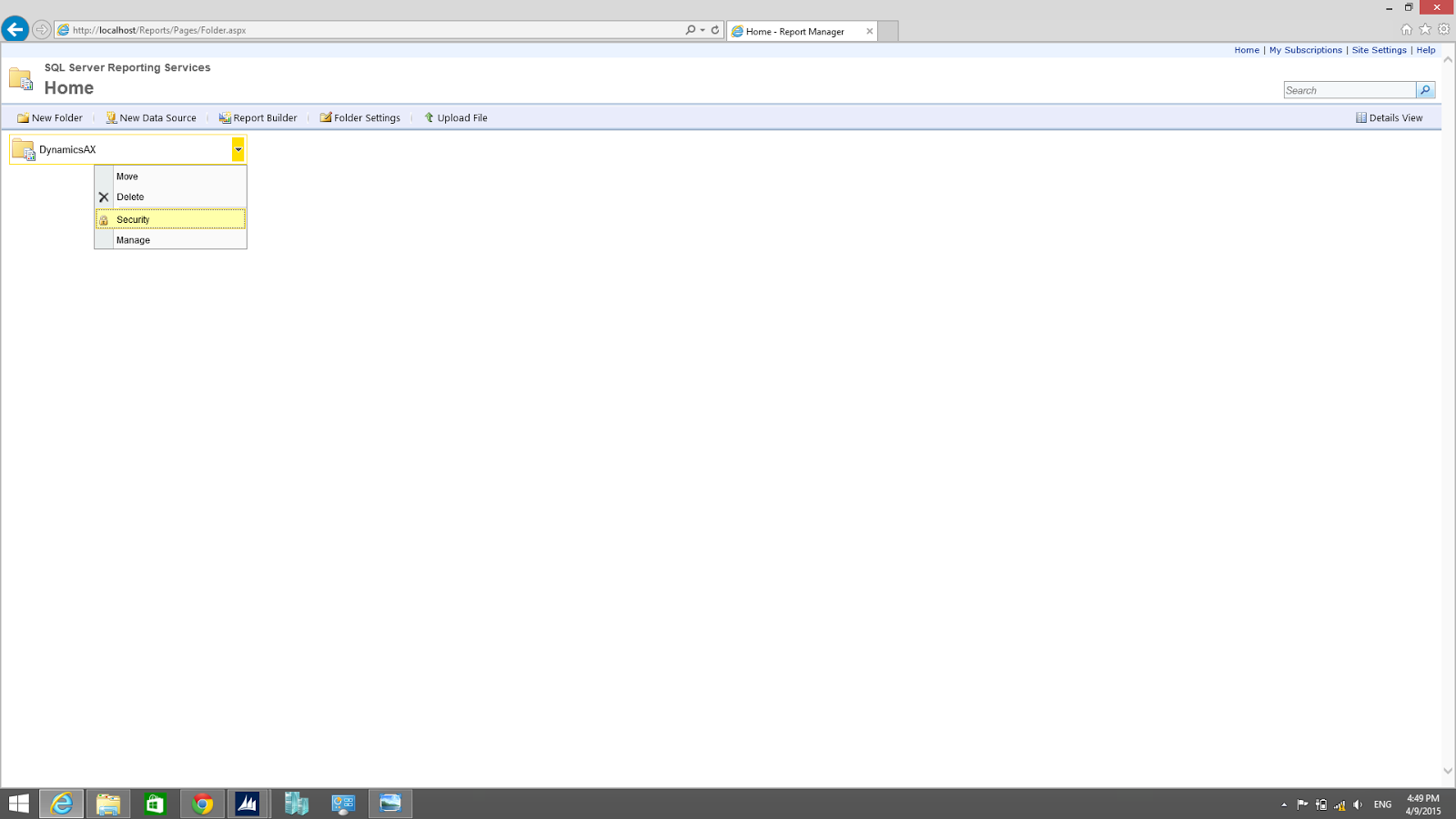
8. Click The small arrow beside the DynamicsAX Folder them select Security.

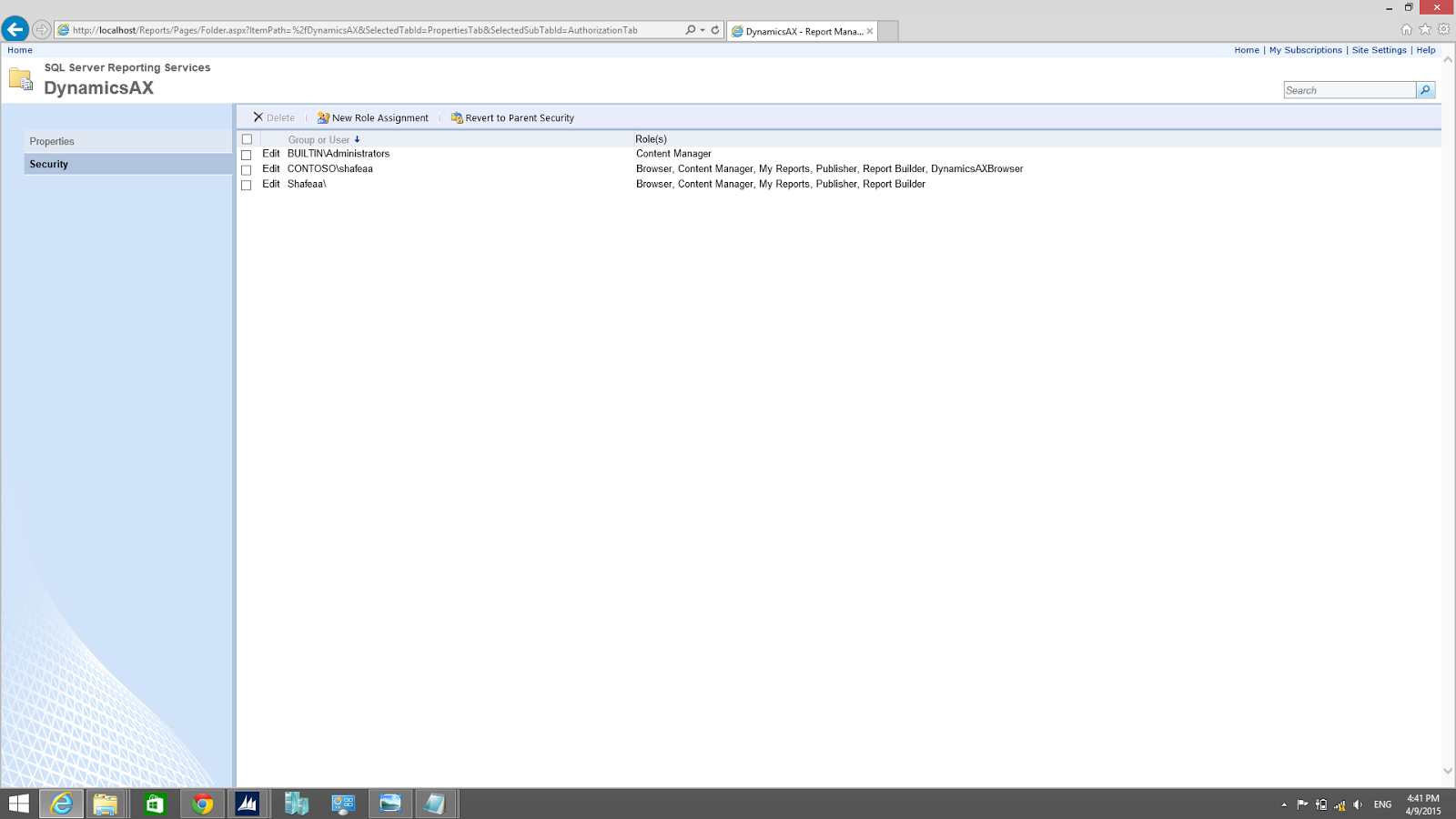
9. Click "New Role Assignment".


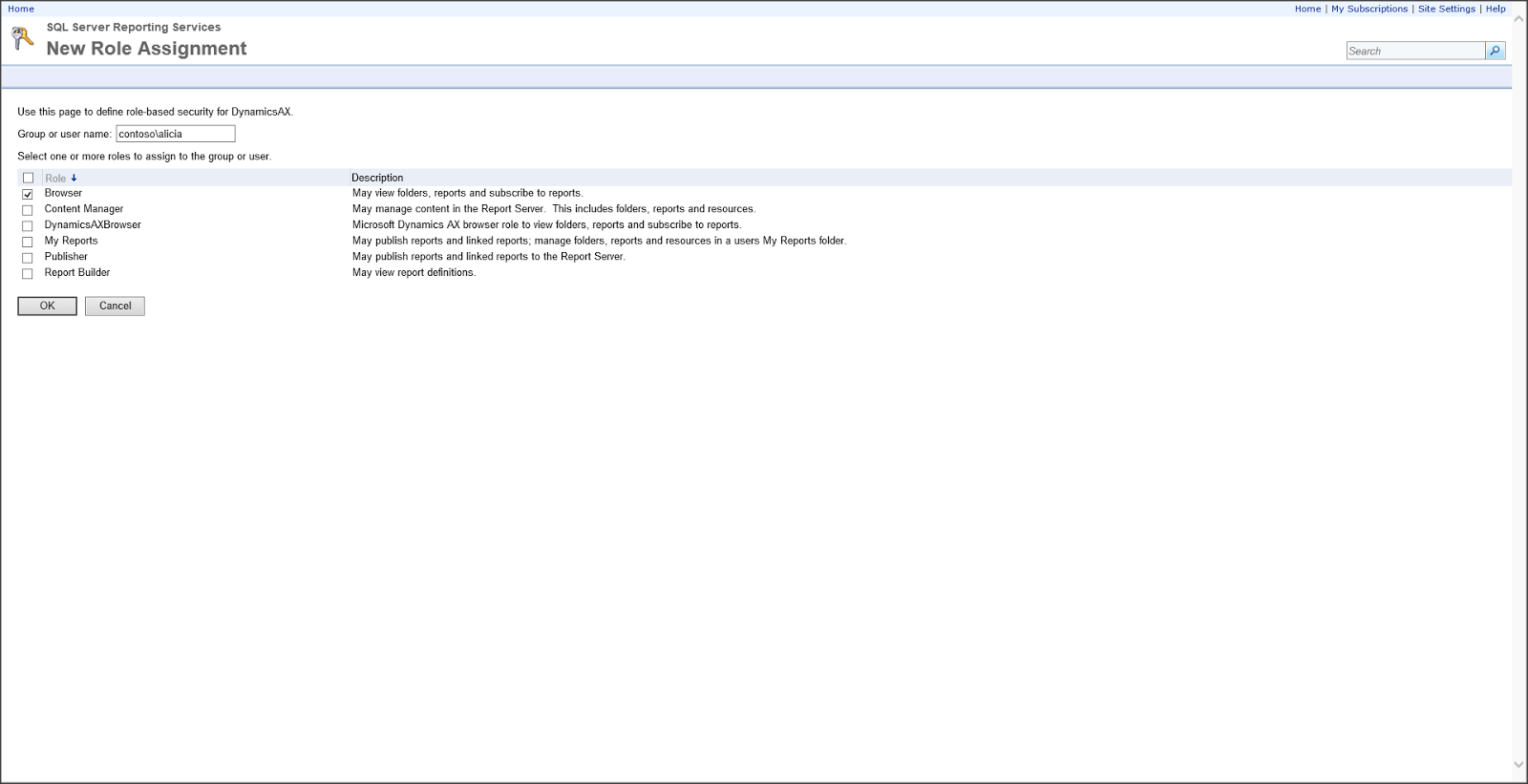
10. write the user account on the the group or user name field. then select the Browse Role. then click the OK Button.


That's It ...

If you are following these steps properly then surly you will be able to print the reports on user system.

Monday, October 3, 2016

Remove the "*" in SSRS report Design

Remove the "*" in SSRS report Design...

Many Time we need to convert the amount in to the words but in this case we got the value with some *** . to remove these *** from the value we can use below expression.

=Replace(Left(First(Fields!Field.value , "DatasetName"),Len(Fields!AmountInWords.Value)-10),"*","") + "Only"

we can use the same logic in any value.

Change Row color in SSRS reports Ax2012

In this article, I will show you how to set an alternate row color in Tablix in Report.
1. First of all Open any SSRS report which contains Tablix.
2. Now select Details Row from Tablix.

3. Then press F4 key or manually open property window. In property window select BackgroundColor Property. Then click on arrow button which is on right side and select Expression as shown in below screenshot.

4. An Expression window opens. In that window paste following expression. Then click on OK button.
=IIF(RowNumber(Nothing) MOD 2,”LightGrey”, “LightBlue”)

You can change color as par your requirement. Simply replace color used in above expression.
5. Now run your report. You will see results look like following screen shot:

6. Similarly if you want to change row background color in specific condition like you need to change row background color when Address contains Ct. In that situation use following expression.
=IIF(InStr(Fields!Address.Value,”Ct”)=0,”LightGrey”,”LightBlue”)
Now run your report. You will see output like following screen shot:

Congratulations! We successfully Set an Alternate Row Color in SSRS Report.

Expression with value to be colorful is -

=IIF(Fields!FieldName.Value < 0, "Red", "Black") 

Friday, September 23, 2016

Refresh form A from Form B or by button through X++

Requirement :- Some time we need to switch from a form to another form and have to update delete or create data which will effect the main form also. But the issue we mostly face that the calling form couldn't refresh the data without refresh. Write the below line with your logic can achieve the same.


void clicked()
{
    FormRun                         formRun;
    #task
    super();
    formRun = element.args().caller(); // will hold the calling form buffer

   /* write your Logic here  to execute  in Form B or Form A */


//Write the below code for refresh your calling form A
    if(formRun)
    {
        formRun.task(#taskF5);
    }
}

Thursday, September 1, 2016

Execute Stored Procedure from X++ code

To execute a stored procedure from X++ use the Server method, the Client method does not have permissions. Following is the screen shot of the code from Server method. you don't require any special privileges or permissions to execute a stored procedure. if used other then Server method, a message should appear like this 'Request for the permission of type 'SqlStatementExecutePermission' failed.'


create a job and write the above code as shown in the image.
When creating a table from AOT in Dynamics AX, developers often forget to right click and save the table, specially the developers habituated to SQL Server. There could be column names conflict if not saved in AOT and eventually the changes might be lost and cause other problems.
Note : If creating a table from AOT in Dynamics AX then there will be couple of default columns added to your table like RECIDRECVERSIONDATAAREAID and etc. Make sure to include and insert values into those fields.

Wednesday, August 31, 2016

Ax2012 Duplicate key was found for the object name 'dbo.TableName'

Ax2012 Duplicate key was found for the object name 'dbo.TableName'


Problem :- 

This message we can get at the time of Tables synchronization which is won't allow you any full synchronization of the application.

Soluction: -  

The message says: "The duplicate key value is presented in the table". Note that this always reports the first error only and there may be more of them.
Go to AOT and find the table where we are getting this error. Now go to the Indexes of the table and right-click the index choose Add-Ins > Duplicates

All the duplicate values will be their in a info box with the number of records. You have to match the value with Filed which is presented in Index and remove all the other field which have same value.

I don't know how AX maintain any table, therefore I wouldn't recommend deleting all the data unless you prove it's safe or related table data is safe.


Extra info About AX and SSRS

  • Info(Class)->startupPost(): This method is triggered when you open AX. This method invokes the default company set when opening AX.
  • Application(Class)->setDefaultCompany(): This class method is triggered when you change the company using the address bar drop down.
  • SysDataAreaSelect(form)->SwitchCompany(): This method is triggered when you change the company using the form in the status bar.(on the lower right corner of AX window).
  • Class "DimensionStorage" can give you the information about the Ledger Dimensions's value from any table like CustTale, VendTable, Projtable.
    EX - CustTable::find(DimensionStorage::ledgerDimension2AccountNum(TableName.LedgerDimension)).AccountNum;
    -ProjTable::find(DimensionStorage::ledgerDimension2AccountNum(TableName.LedgerDimension)).ProjId;
  • "DefaultDimensionView" is the View which hold the values of all dimensions.
  • Get number sequence directly in X++ through blow code .
    NumberSeq::newGetNum(BankParameters::numRefBankStatementDownloadId()).num();
  • "SrsReportDataProviderPreProcess" use this in Class declaration to enable breakpoint in SSRS.
Difference Between Unique And Primary Indexes.

The basic and main difference between Primary and Unique Index is that we can't left primary index blank where as unique can be blank. 

Conversion of Disposition code, code was not specified - Error in D365 F&O for inter company purchase order return

 We crated the return order for inter company purchase order  and created a Item Arrival Journal through Arrival Overview in corresponding c...